

Starting a live stream is easier than ever, but creating a stream that viewers remember requires more than simply pressing the Go Live button. Good content remains the foundation, yet presentation, interaction, sound, visuals, and consistency can all influence how professional a channel feels. A well-organized setup can also make streaming easier for the creator by reducing repetitive tasks and keeping important tools in one place. Streamlabs provides software, widgets, overlays, alerts, tipping tools, moderation features, and other resources designed to help creators build and manage their broadcasts.
Start With a Clear Streaming Identity
Before choosing overlays and animated alerts, decide what you want your channel to communicate. A gaming channel might benefit from energetic graphics, while a podcast, educational stream, music session, or casual community broadcast may need a cleaner visual identity. Your colors, fonts, webcam frame, transitions, and alert style should work together rather than appearing as unrelated elements.
Streamlabs offers thousands of professionally designed overlays and themes, allowing creators to develop a consistent appearance without designing every element from scratch. This can be especially useful when you are still establishing your channel and want to spend more time creating content.
Think about your visual identity as a complete system. Your starting-soon screen, live layout, break screen, ending screen, alert box, and chat box should feel connected. Even a relatively simple setup can look polished when the individual elements share a recognizable style.
You do not need to use every available animation. Too many moving elements can distract viewers from the actual content. Instead, choose a few visual features that reinforce your personality and keep the main focus on you and your content.
Organize Your Stream Around Your Content
A professional stream should make it easy for viewers to understand what is happening. The arrangement of your camera, gameplay or screen capture, chat, alerts, and other information should reflect the type of content you produce.
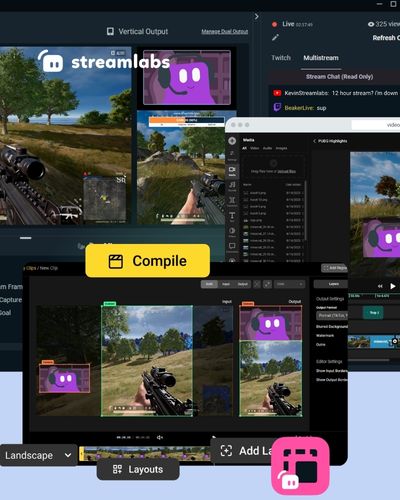
Streamlabs Desktop allows creators to set up cameras, capture their screens, record videos, and start live streams from the same application. This can simplify the technical side of content creation, particularly for creators who do not want to manage several separate applications.
Start by identifying the most important visual element. For a gaming stream, this may be the game itself. For a tutorial, it may be the screen being demonstrated. For a discussion stream, your camera could be the primary focus. Everything else should support that central element.
You can then create separate scenes for different parts of your broadcast. A main scene might contain your camera and content, while another could be used when you need to step away. Starting-soon and ending scenes can also give viewers clear signals about the status of your broadcast.
A clean structure makes your stream easier to follow and gives you more control when moving between different sections.
Use Alerts to Turn Viewers Into Participants
Live streaming becomes more engaging when viewers can see that their actions matter. A new follower, subscriber, or tip can become an opportunity to acknowledge someone directly instead of letting the interaction disappear into a busy chat.
Streamlabs Alert Box can display customized alerts for events such as follows, subscriptions, and tips. Creators can adjust the visuals, sounds, messages, and variations to match their channel identity.
The important part is not simply adding an alert but deciding how you will respond to it. If someone follows your channel, acknowledge them naturally. If a viewer regularly participates, consider creating moments that make the community feel recognized without turning every interaction into a scripted announcement.
Alert variations can also make special milestones more memorable. Streamlabs allows creators to create different alert variations based on conditions such as tip amounts or subscription milestones.
Keep moderation in mind as well. Alerts can include user-generated information, so appropriate moderation settings can help prevent unwanted messages from appearing publicly. Streamlabs provides moderation controls for alerts, including options to review them before they appear on stream.
Make Chat Part of the Experience
A successful stream is not only about what happens on screen. The conversation around the content can become one of the most valuable parts of a creator’s community.
Chat boxes, event lists, goals, and other widgets can make viewer activity more visible and encourage people to participate. Streamlabs describes widgets as tools for customizing streams and supporting interaction, while its Cloudbot tools can provide moderation and community features.
However, interaction works best when it feels natural. Instead of constantly asking viewers to comment, create opportunities for conversation. Ask for opinions about a game, invite viewers to choose between two options, discuss a recent topic, or let the audience influence a suitable part of your content.
Moderation is equally important as your community grows. A welcoming chat requires boundaries, especially during larger broadcasts. Tools that help filter unwanted content can reduce the pressure on the creator and make the environment more comfortable for viewers.
The goal is to create a space where people want to return, not simply a screen filled with widgets.
Build a Workflow That Saves Time
Streaming involves more preparation than viewers usually see. Scenes need to be organized, microphones and cameras need to be checked, alerts need testing, and recording settings need to be ready. Creating a repeatable workflow can remove much of this friction.
Streamlabs integrates its tools into different workflows, including Streamlabs Desktop, its mobile app, and its plugin for OBS. The Streamlabs plugin for OBS brings features such as alerts, widgets, tipping, overlays, Cloudbot, and Stream Labels into the OBS interface.
A useful routine might begin with checking your microphone and camera, confirming your internet connection, opening the correct scene, testing alerts, and closing unrelated applications. Once the checklist becomes familiar, the technical preparation can take less time.
Recording content can also become part of the same workflow. Streamlabs Desktop supports recording as well as live streaming, so creators can capture material for edited videos or short-form content alongside their broadcasts.
The more repeatable your process becomes, the more attention you can give to the actual content.
Improve Your Setup as Your Channel Grows
You do not need an expensive studio to create a strong stream. In the beginning, improving the basics can have a bigger impact than buying additional equipment. A clear microphone, reliable lighting, stable internet connection, and uncluttered scene can make the viewing experience noticeably better.
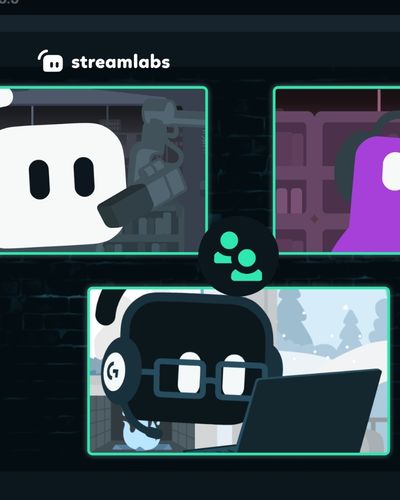
Streamlabs can then provide tools for gradually improving the presentation. Its current ecosystem includes overlays, widgets, mobile streaming, tipping, Cloudbot, video tools, Talk Studio, Cross Clip, and other creator-focused resources.
As your audience grows, look at what viewers actually respond to. Perhaps your community enjoys particular alerts, prefers a certain scene layout, or frequently participates in specific types of interaction. Use those observations to refine the setup instead of adding features simply because they are available.
It is also worth reviewing your stream periodically. Remove widgets that no longer serve a purpose, simplify scenes that feel crowded, update outdated graphics, and test your alerts before important broadcasts.
The strongest streaming setup is not necessarily the most complicated one. It is the setup that helps you communicate clearly, interact naturally, and create consistently without making the technical process overwhelming. By establishing a recognizable visual identity, organizing scenes around your content, using alerts thoughtfully, encouraging meaningful chat participation, and building a repeatable workflow, you can create a broadcast that feels more polished while still reflecting your personality. Streamlabs can provide the tools, but your content and relationship with the audience remain what make the channel worth returning to.